Profile and API keys
Change your email or password, review your sessions and create keys for your own tools.
Open the account menu, then Profile. Three pages sit in the PROFILE menu: Account, Security and API keys.
Account
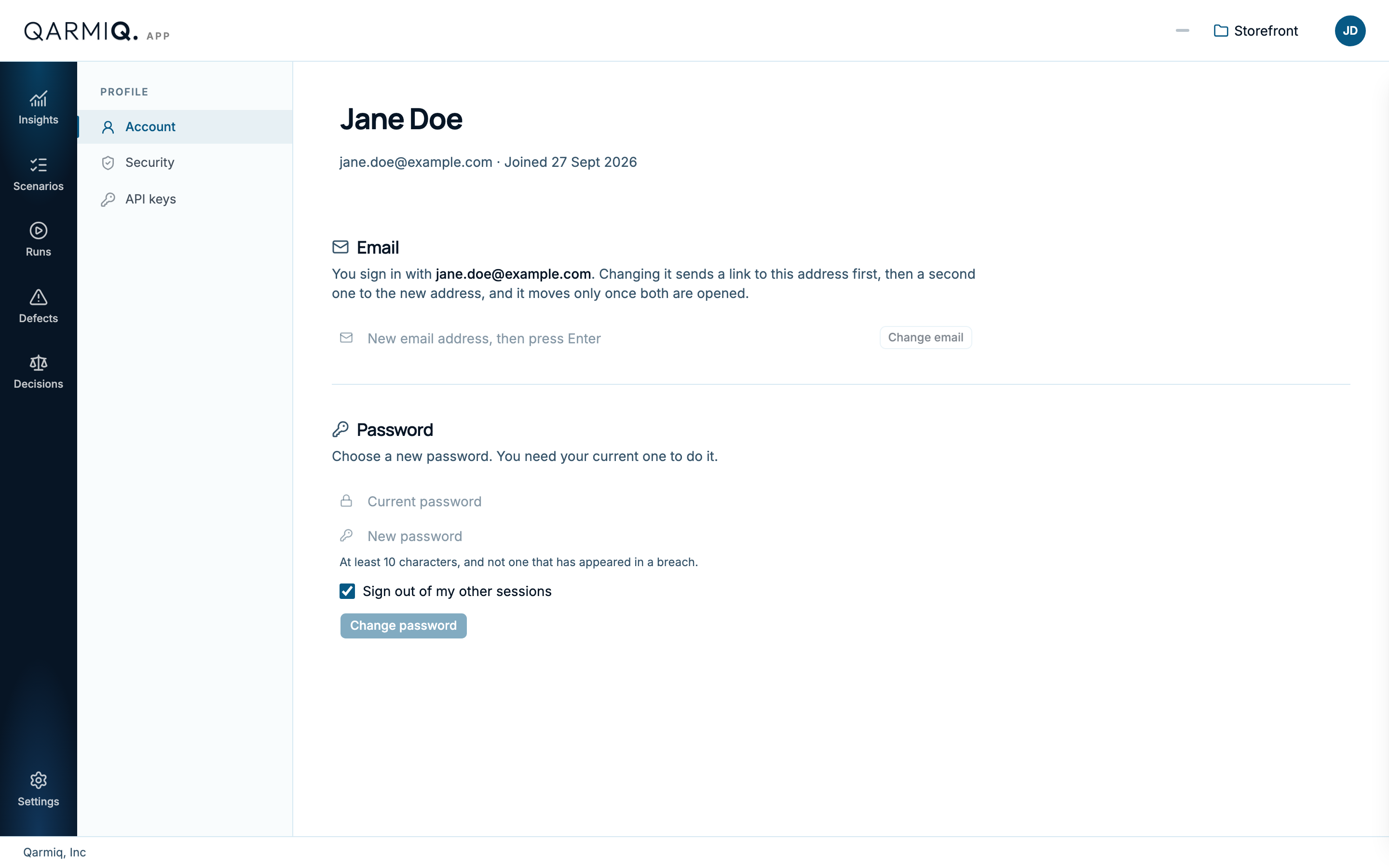
- Email: enter a New email address and select Change email. Qarmiq sends a link to your current address first, then a second one to the new address, and the email moves only once both are opened.
- Password: enter your Current password and a New password of at least 10 characters, then select Change password. Tick Sign out of my other sessions to end them.
Security
Two-factor authentication asks for a code from an authenticator app as well as your password. Select Turn on to set it up.
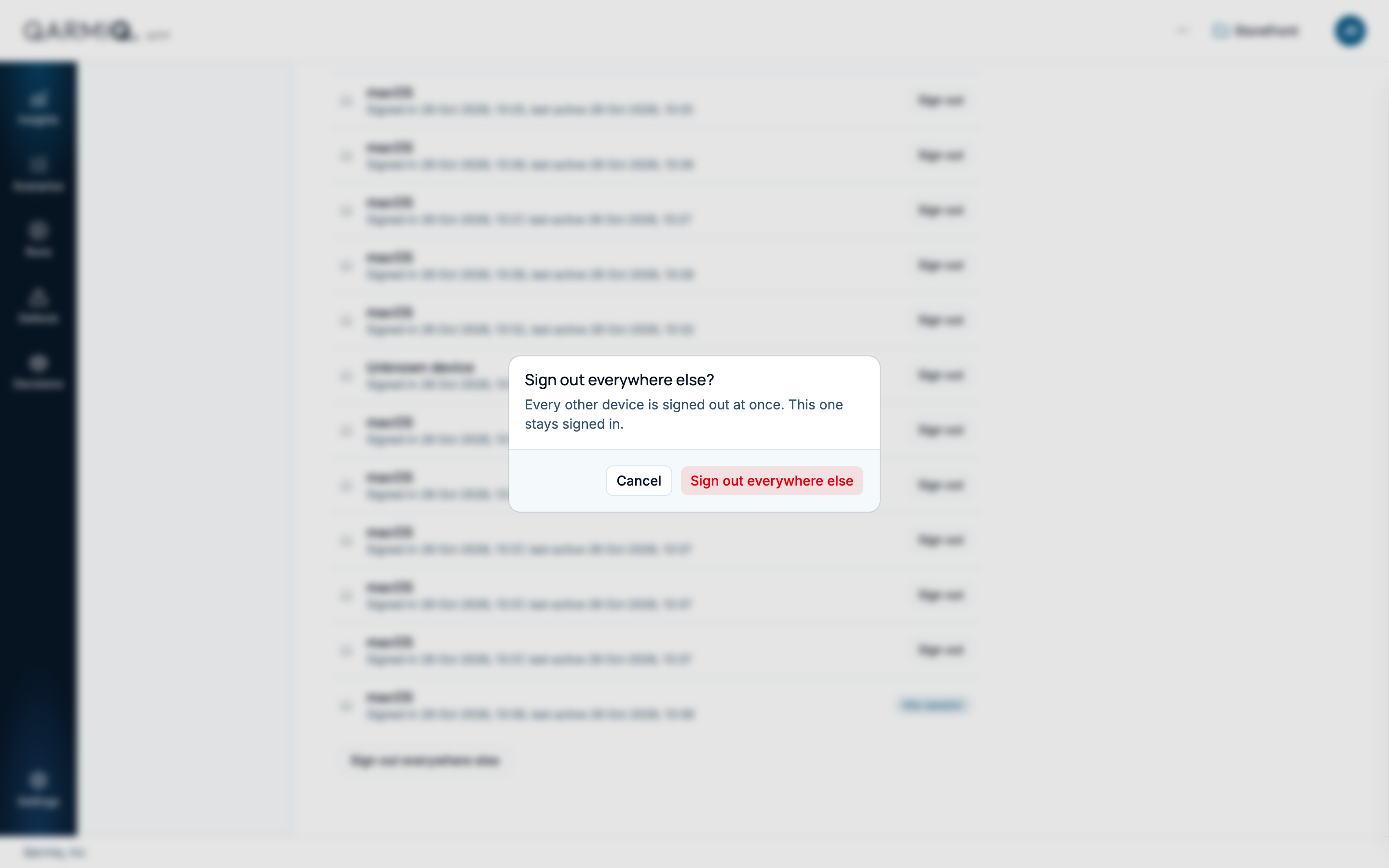
Sessions lists the devices signed in to your account. Select Sign out beside one, or Sign out everywhere else.
API keys
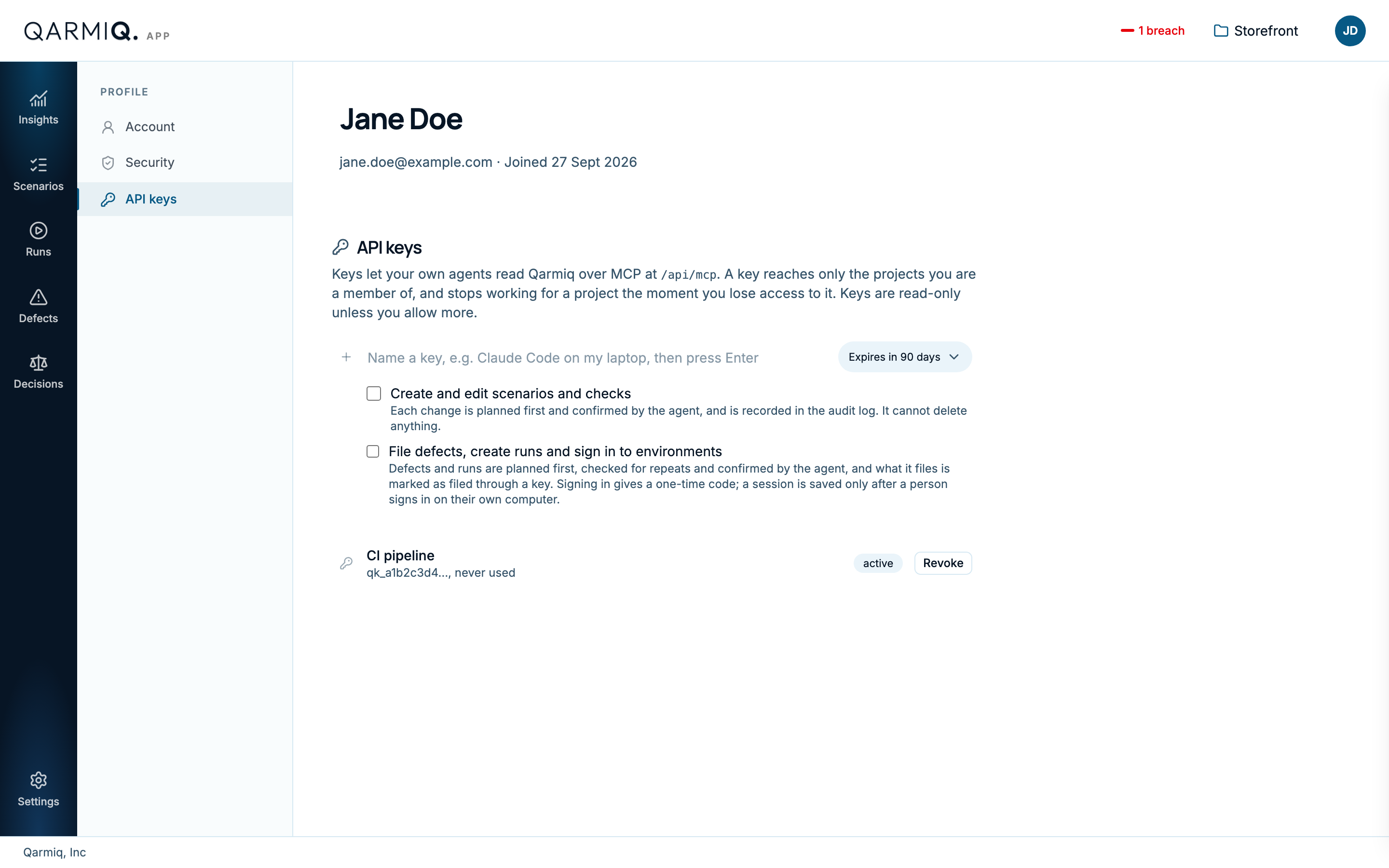
Keys let your own agents read Qarmiq over MCP. A key reaches only the projects you are a member of, and stops working for a project the moment you lose access to it.
- Enter a Key name.
- Choose when it expires. The default is 90 days.
- Choose what it may do beyond reading: Create and edit scenarios and checks, or File defects, create runs and sign in to environments.
- Create the key and copy it straight away. It is shown once.
Select Revoke beside a key to stop it working. Create one key per tool, so you can revoke one without affecting the rest.
Last verified against the product on 28 October 2026.