Autonomous test results
Read what the AI agent did, what it found, and why a scenario passed or failed.
When the agent tests a scenario, the result opens on its own page. In a run, select Test log beside a scenario, then open the test.
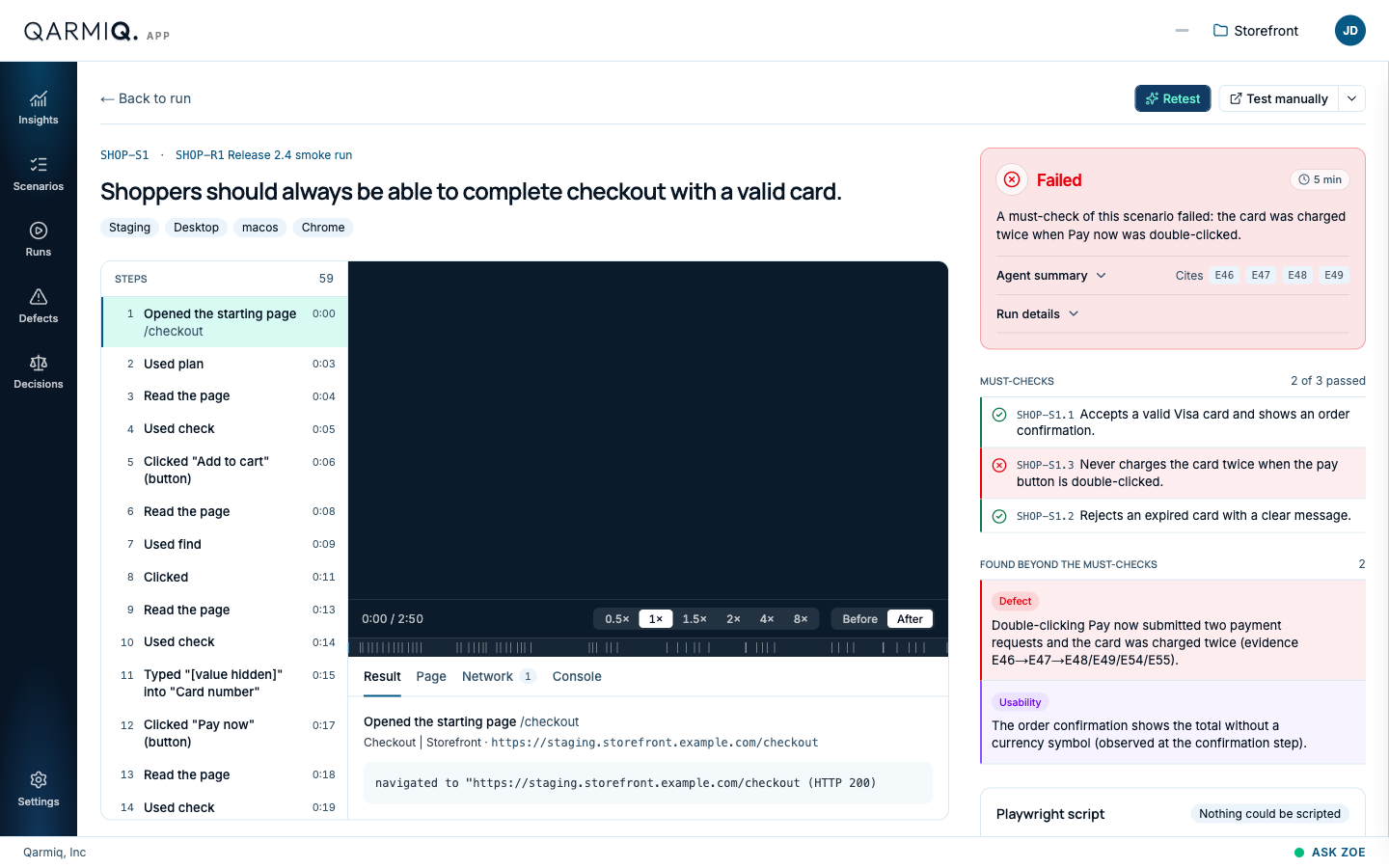
The top of the page names the scenario, the run, and where it was tested: environment, device, operating system and browser. Back to run returns to the grid.
The verdict
The card at the top right says Failed, Passed or inconclusive, how long the test took, and why in one sentence. A verdict that cites no evidence counts as inconclusive.
- Agent summary opens the agent’s own account. Cites lists the pieces of evidence the verdict rests on, such as
E46. - Run details opens the settings the test ran with.
The must-checks
MUST-CHECKS lists each check the agent was asked to prove, with how many passed. A failed check is marked in red.
Found beyond the must-checks
While it works, the agent can notice things outside the checks it was given. They are listed under FOUND BEYOND THE MUST-CHECKS, each with a kind: Defect, Usability, and others such as an edge case or a missing check.
A finding is the agent’s own claim, not a verdict. It never changes a result by itself. It also appears as a Test finding on Decisions, where Accept acknowledges it and Reject dismisses it. Accepting does not create anything. To act on it, do one of these:
- File it as a defect. Hover a finding and select the defect icon, File a defect from this finding. See below.
- Add a check. Add the missing check to the scenario. See Checks.
File a defect from a finding
- Hover the finding and select the defect icon.
- The File defect dialog opens with the summary already drafted from the finding.
- The description begins with Steps to reproduce. Qarmiq writes them from what the test did, as steps a person can follow. While it writes, they show as pending, and they fill in when ready.
- If the steps cannot be written, the test’s own recorded steps are shown instead, with a note.
- Check the steps, choose a Severity and select File defect.
The defect is linked to the scenario, the run, the environment and the browser. Defects filed on the test page lists everything filed from this test. The same icon appears on findings in the run report.
Steps and recording
STEPS lists everything the agent did, in order, with the time of each. Select a step to see its details under the recording.
The recording plays at 0.5× up to 8×. Before and After switch between how the page looked before and after the step. Text the agent typed is masked and shows as [value hidden].
The recording has a Playback speed control and Before and After, which switch between the page just before and just after the selected step. The step list is also a scrubber: select a step to jump the recording to it.
Under the recording, the tabs hold the detail of the selected step:
| Tab | What it shows |
|---|---|
| Result | What the step did and what came back. |
| Page | The page at that moment. |
| Network | The requests the page made. |
| Console | Messages and errors from the page. |
Playwright script
A scenario the agent passes can become a Playwright script that you can download. See Playwright scripts.
Manual sessions of this scenario
MANUAL SESSIONS OF THIS SCENARIO lists people who tested the same scenario by hand, so you can compare a person’s session with the agent’s. See Manual test log.
Run it again
Retest sends the agent back to the same scenario. Test manually opens your own app so a person can test it instead. See Test manually and autonomously.
Last verified against the product on 28 October 2026.