Verdicts and the run grid
Read the run page, record results, see who is testing what, and file defects from a result.
Open a run to see its grid. There is one row for each scenario and one column for each browser.
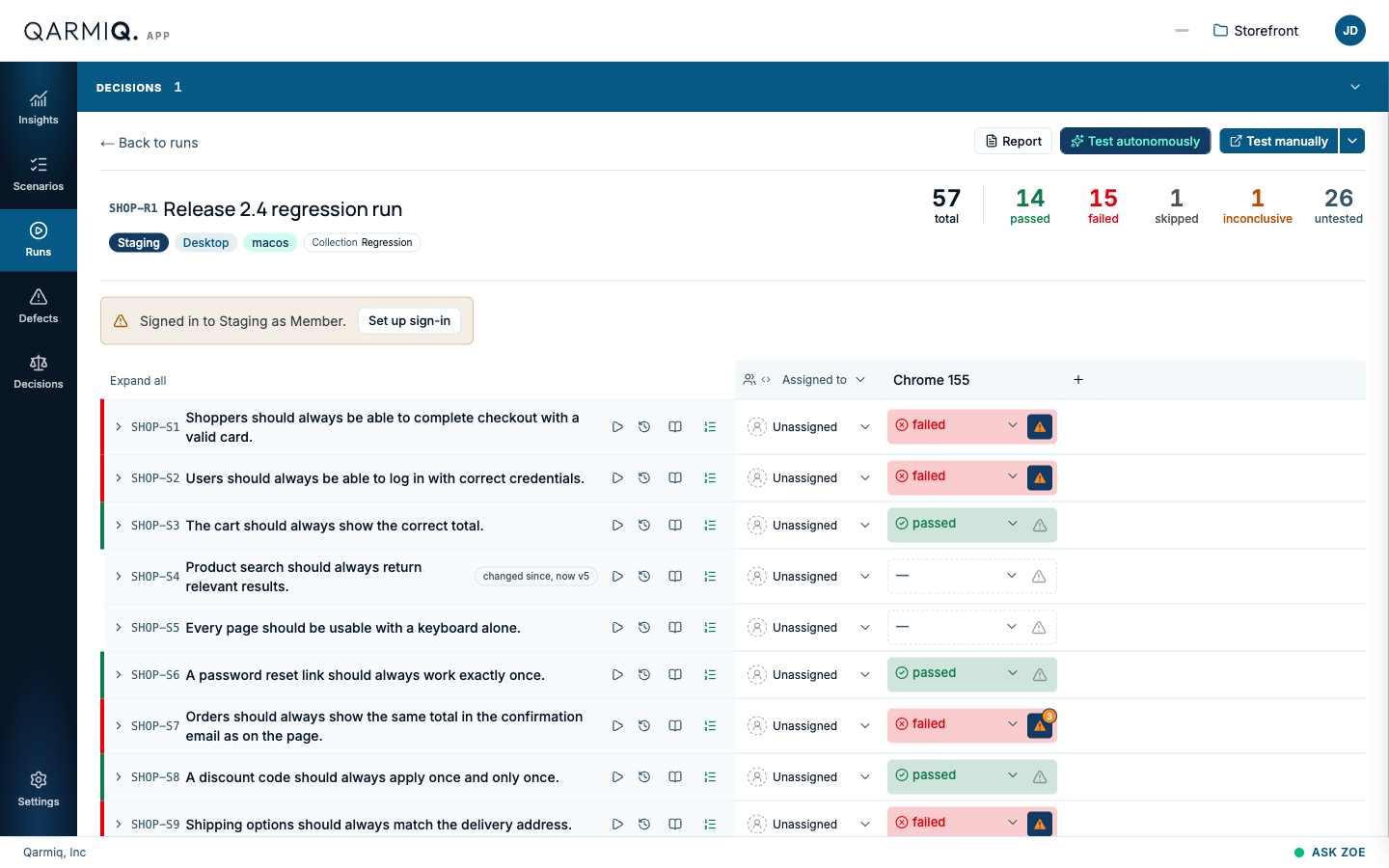
The top of the page
- The title, with its reference, environment, device, operating system and, for a collection run, the Collection it came from.
- Totals at the right: total, passed, failed, skipped, inconclusive, blocked and untested. A total appears only when it is not zero.
- Report opens the printable summary. See Run report.
- Test autonomously and Test manually start testing. See Test manually and autonomously.
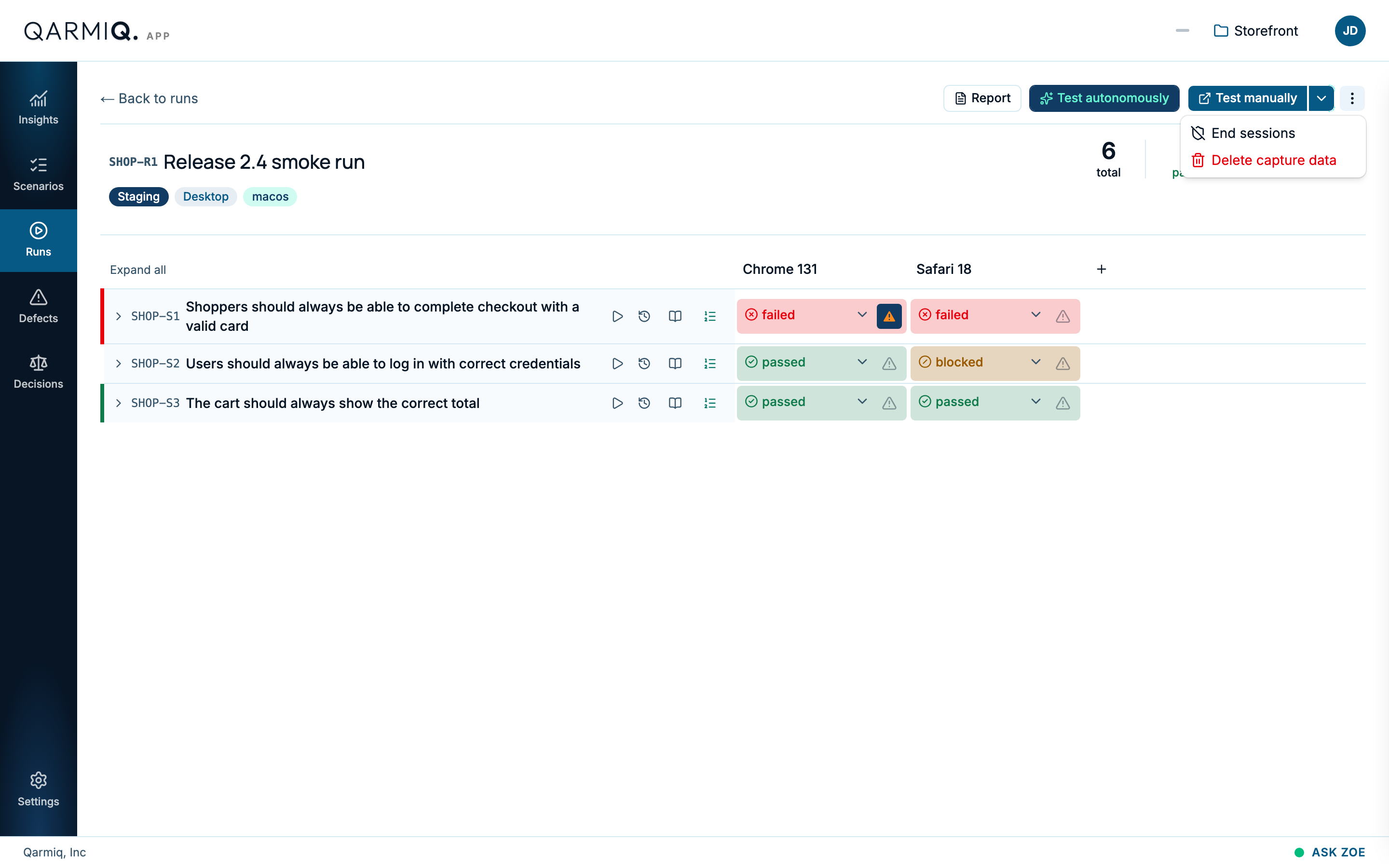
- The three dots, More run actions, hold End sessions and Delete capture data.
A DECISIONS bar above the page lists decisions raised by this run’s tests. See Decisions.
The sign-in strip
If the environment needs a login, a strip says who the agent is signed in as, for example “Signed in to Staging as Member”, with Set up sign-in. It opens each role with its state. A role marked Session expired has a Reconnect button, and the agent cannot test as that role until you reconnect. See Environments.
Open the checks
Select Expand all to open every scenario and see its checks, each with its own result. Collapse all closes them. A scenario’s result is set from its checks, or by a person directly on its row.
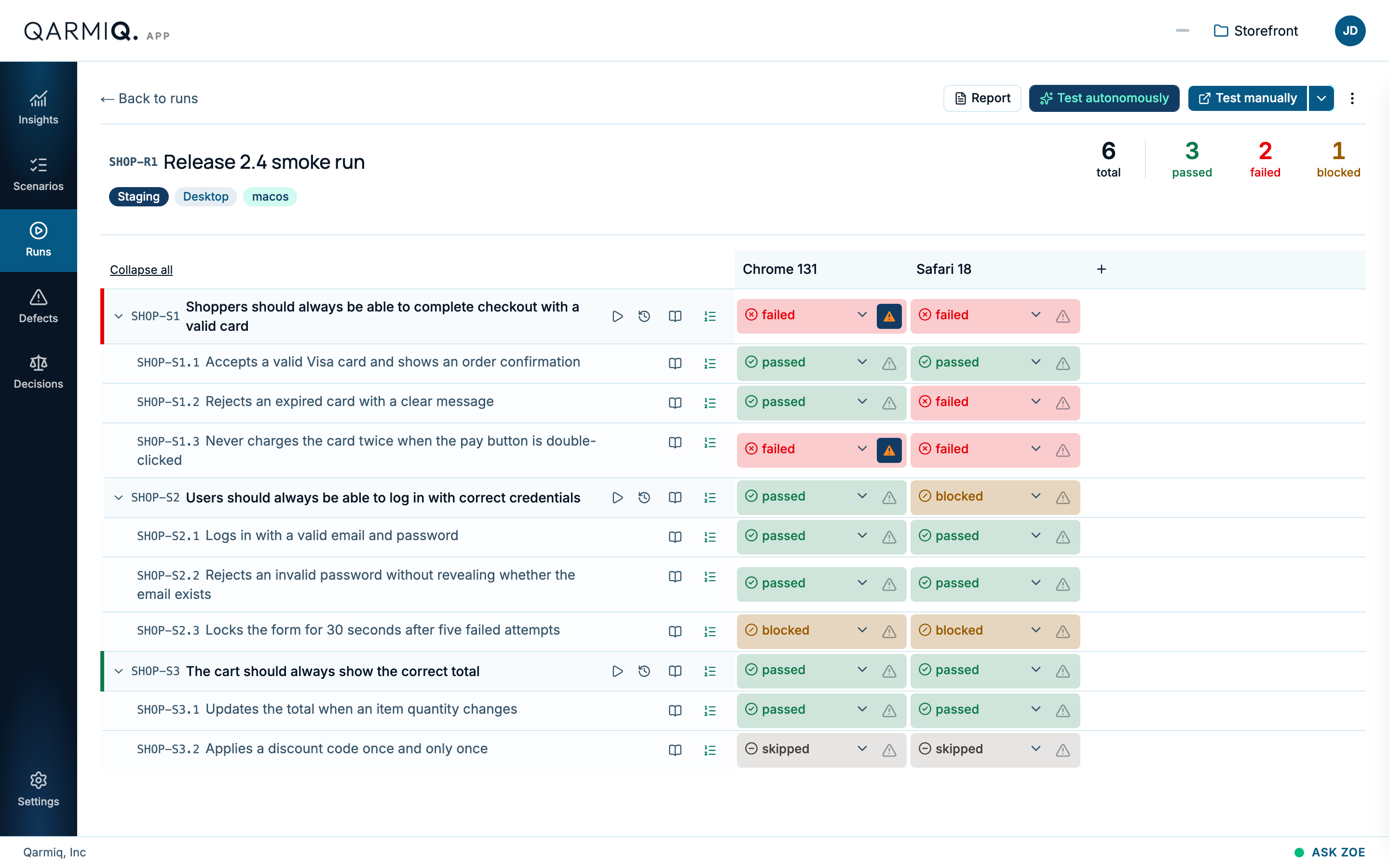
A changed since, now v5 chip on a row means the scenario was edited after the run was created. The run keeps the wording it started with.
Record a verdict
Use the dropdown in each cell.
| Verdict | Meaning |
|---|---|
| Passed | It holds on this browser. |
| Failed | It does not hold. |
| Blocked | Something stopped you from checking it. |
| Skipped | You chose not to check it in this run. |
| Inconclusive | The test could not decide. This is also what the agent’s judge gives when it cannot cite evidence. |
| Clear | Removes the result, so the cell is untested again. |
Blocked, skipped and inconclusive all count against the pass rate on Insights.
Icons on a scenario row
| Icon | What it does |
|---|---|
| Play | Test SHOP-S1 on its own sends the agent to that one scenario. |
| Clock | Test log shows who tested, when, and what was filed. It links to the full result. See Autonomous test results and Manual test log. |
| Book | Context shows what the scenario means and the data to use. |
| List | Steps to test writes steps a person can follow. They are written by the project’s AI. |
File a defect from a result
The warning icon beside a result is File defect. It attaches the run, environment and browser. When defects are already filed, the icon is filled and shows how many. Select it to see them or file another.
The dialog has a short summary, a description and a Severity. The description asks for the steps to reproduce, what was expected and what happened instead. You can Attach files. See Defects.
See who is assigned
The people icon in the column header shows who is testing what. See Browsers and assignees.
More actions
End sessions closes any manual testing still open for the run. Delete capture data removes evidence recorded during the run. Only administrators see the second.
Last verified against the product on 28 October 2026.