Defects
Every way to file a defect, how steps to reproduce get there, and how to find and triage them.
A defect is a problem found while checking your product. It stays linked to the scenario and check where it was found, and to the run, environment and browser when there is one.
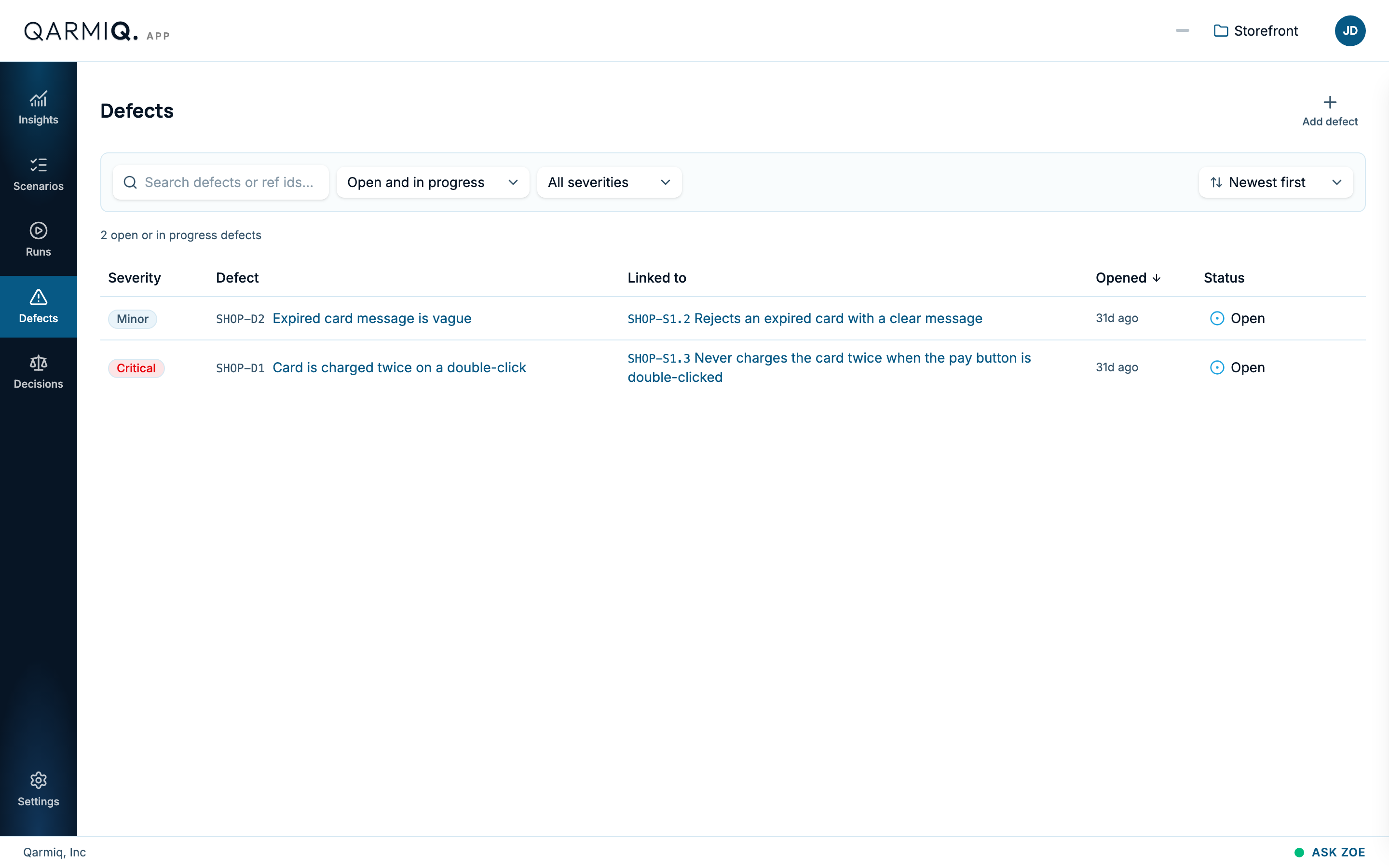
Ways to file a defect
| From | How | What comes with it |
|---|---|---|
| The defects list | Add defect | Nothing is linked for you, so give the detail yourself. |
| A run result | The warning icon beside a result, File defect | The run, environment, browser and scenario. See Verdicts and the run grid. |
| A check | The bug icon beside the check | The scenario and check. See Checks. |
| A test finding | The defect icon on a finding | A drafted summary, and steps to reproduce written from what the test did. See Autonomous test results. |
| A manual test | Witness, on your own app | A markable screenshot and the steps behind it. See Witness. |
| Zoe | Ask her to draft one | A draft you submit. See Zoe. |
| A connector | Accept a Connector verdict decision | A defect linked to that result. See Decisions. |
Defects filed by an AI agent through a key are marked as filed through a key. See Profile and API keys.
The File defect dialog
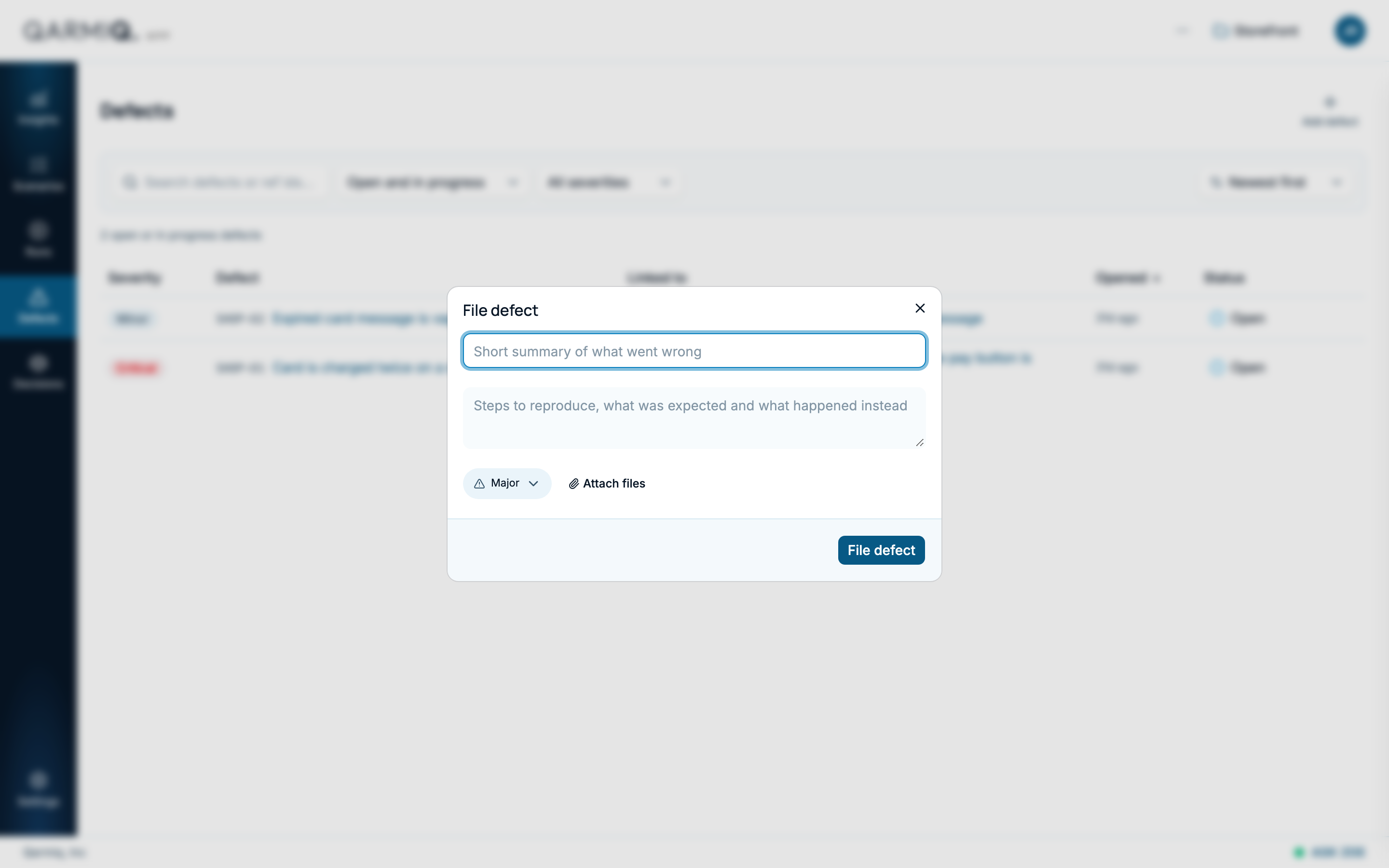
- Enter a short summary of what went wrong.
- In the description, give the steps to reproduce, what was expected and what happened instead. When you file from a finding, the steps are already there.
- Choose a Severity. It starts at Major.
- Optionally Attach files, or paste a screenshot.
- Select File defect.
Each defect gets a reference such as SHOP-D1.
| Severity | Use it for |
|---|---|
| Critical | Users cannot do something essential, or money or data is at risk. |
| Major | A key flow is badly affected. |
| Minor | A small problem with a workaround. |
| Trivial | Cosmetic or very low impact. |
Critical and major defects lower the Defect-free signal on Insights until they are closed.
How steps to reproduce get there
- From a test finding, Qarmiq rewrites the test’s recorded steps as plain steps a person can follow. If that fails, the recorded steps are shown instead.
- From a manual test, the log of what the tester did is attached. See Manual test log.
- Any defect can get a written brief later, with steps to reproduce, from Write brief. See Defect detail.
- Otherwise you write them in the description.
Find defects
Search defects by title. Use Filter by status and Filter by severity, and Sort defects by newest, oldest or severity. The list opens on open and in progress defects. Each row shows its severity, title, the check it is linked to, when it was opened and its status.
Change the status
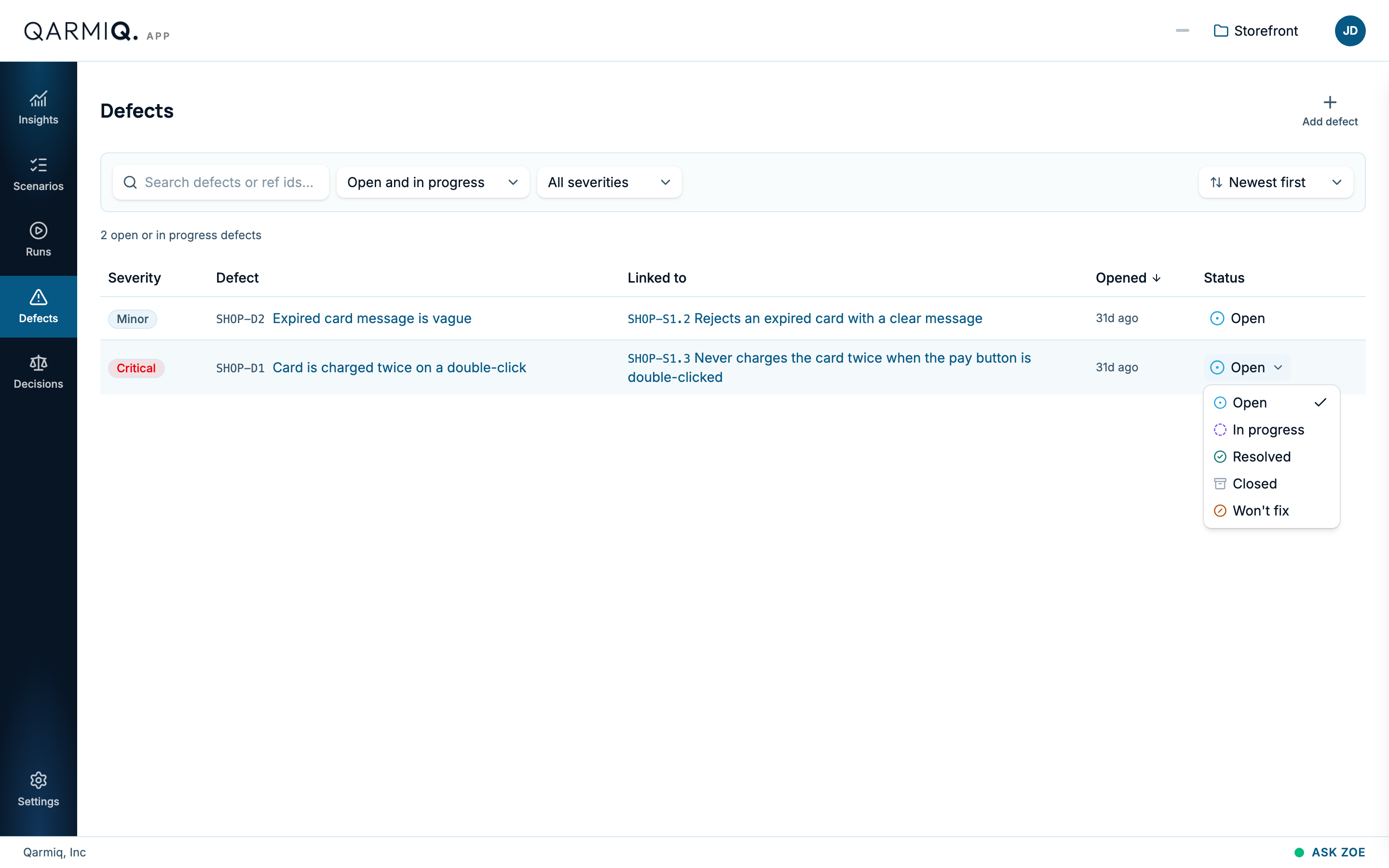
Select the status on a row, such as Open, to change it to In progress, Resolved, Closed or Won’t fix.
Last verified against the product on 28 October 2026.