Browsers and assignees
Add browsers to a run, and assign each scenario to a person.
Both live in the run grid. See Verdicts and the run grid for the rest of the page.
Add a browser
Each column of the grid is one browser. A scenario is tested once per column.
- Select the plus at the end of the browser headings, Add browser.
- Choose a browser from the menu. It lists the ones not already in the run, such as Chrome, Safari, Firefox, Edge, Brave, Opera and Sandbox Chrome.
- A new column appears. Record a verdict in each cell, or let a tester do it.
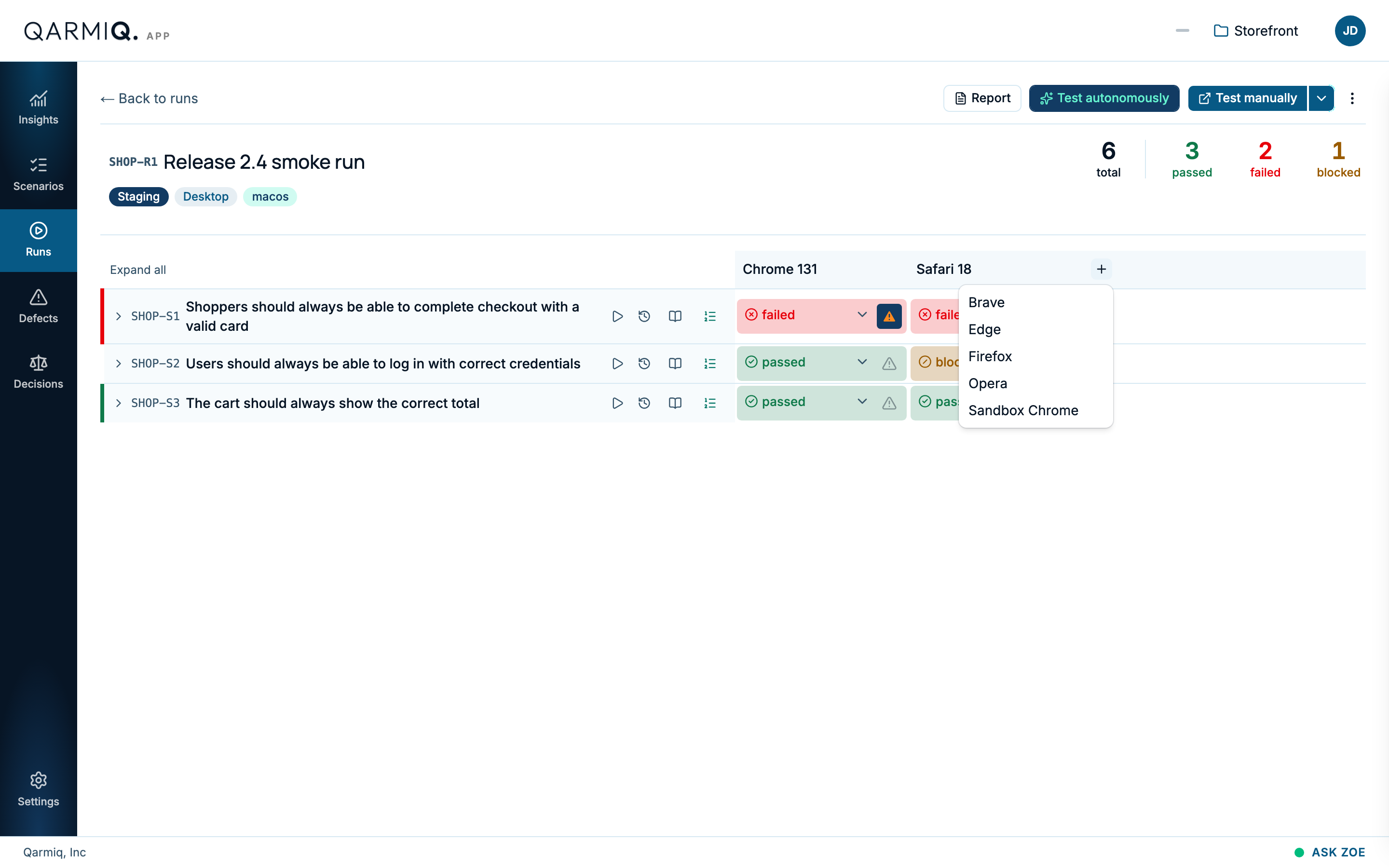
You can add a browser to a run at any time, including after results are in. Autonomous testing runs in Chrome-family browsers only. A person can test in any of them.
If a tester opens your app from Test manually in a different browser or operating system from the one the run expects, the manual test log warns you. See Manual test log.
Assign a scenario to a person
Assigning says who is responsible for testing a scenario in this run.
- Select Show who is assigned to each scenario, the people icon in the column header. An Assigned to column opens.
- On a scenario’s row, open the dropdown that says Unassigned.
- Choose a project member.
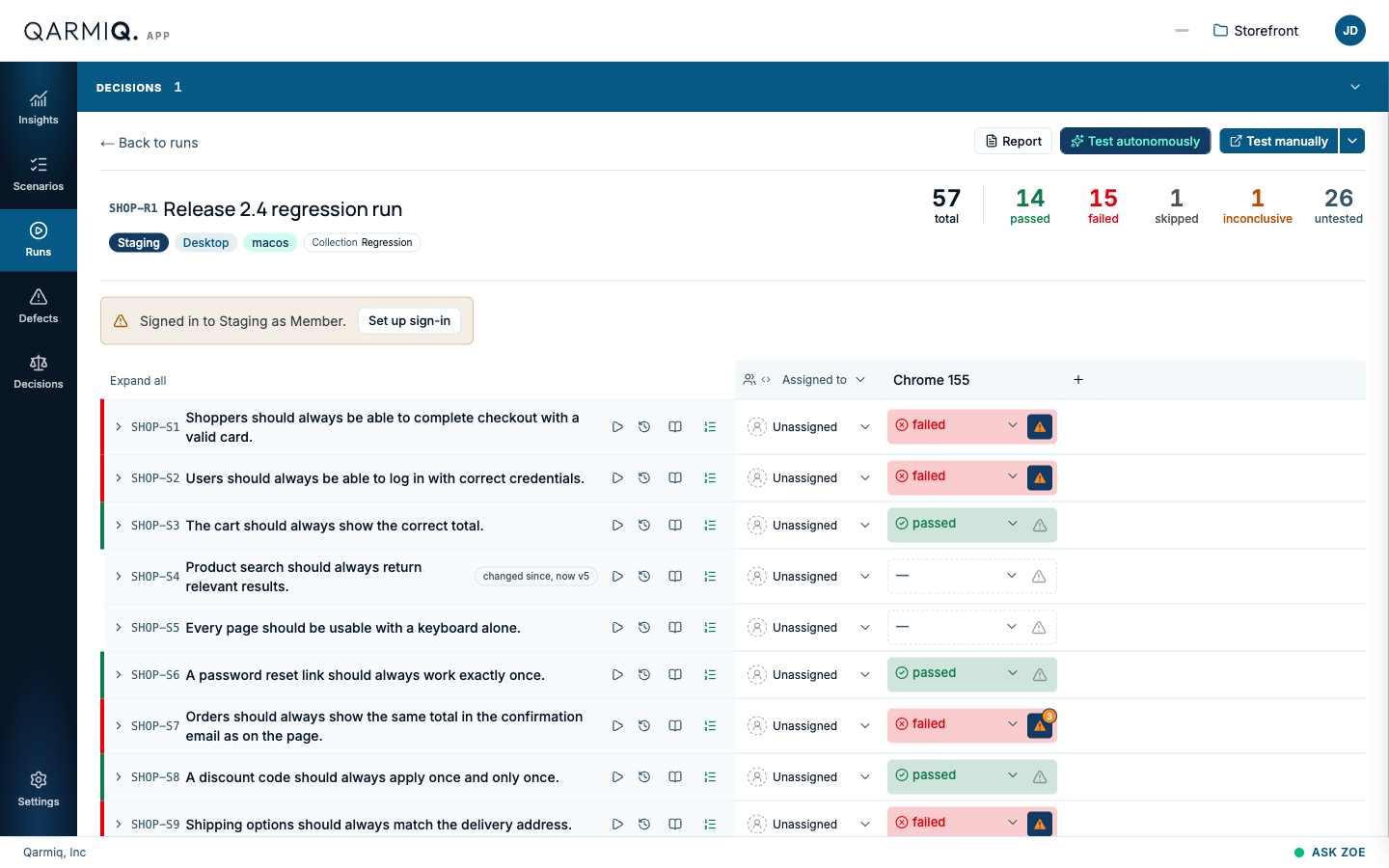
Choose Unassigned again to clear it. Only people who are members of the project are offered. See Project members.
Find your own work
Select Show scenarios assigned to and choose a person to show only their scenarios. To get the column out of the way, select Collapse the assignee column.
Last verified against the product on 28 October 2026.