Manual testing with Witness
How a person tests on your own app, what the Witness bar looks like, and how to record results and file defects without leaving the page.
Manual testing means a person tests your real app, in their own browser, the way a customer would. Witness is the small bar that sits on the page while they do. It shows what to verify, takes Pass and Fail, files defects with a screenshot, and records what happened as evidence. Everything goes straight into the run.
Before you start
- Witness must be installed on the app you are testing. See Witness.
- The run’s environment needs the address of your app. See Environments.
- You need a run with the scenarios to test. See Create and find runs.
- If your app needs a login, sign in as you normally would.
Start a session
- Open the run.
- Select Test manually. Your app opens in a new tab with the run attached, and the Witness bar appears at the bottom.
To get a link for someone else to open, use More ways to test manually and select Copy link. Results are recorded under the name of the person who made the link, so each tester should make their own. The link stops working after 24 hours, or sooner if an administrator ends the session.
Visitors to your app never see Witness. The bar appears only when someone arrives through one of these links.
How the bar looks
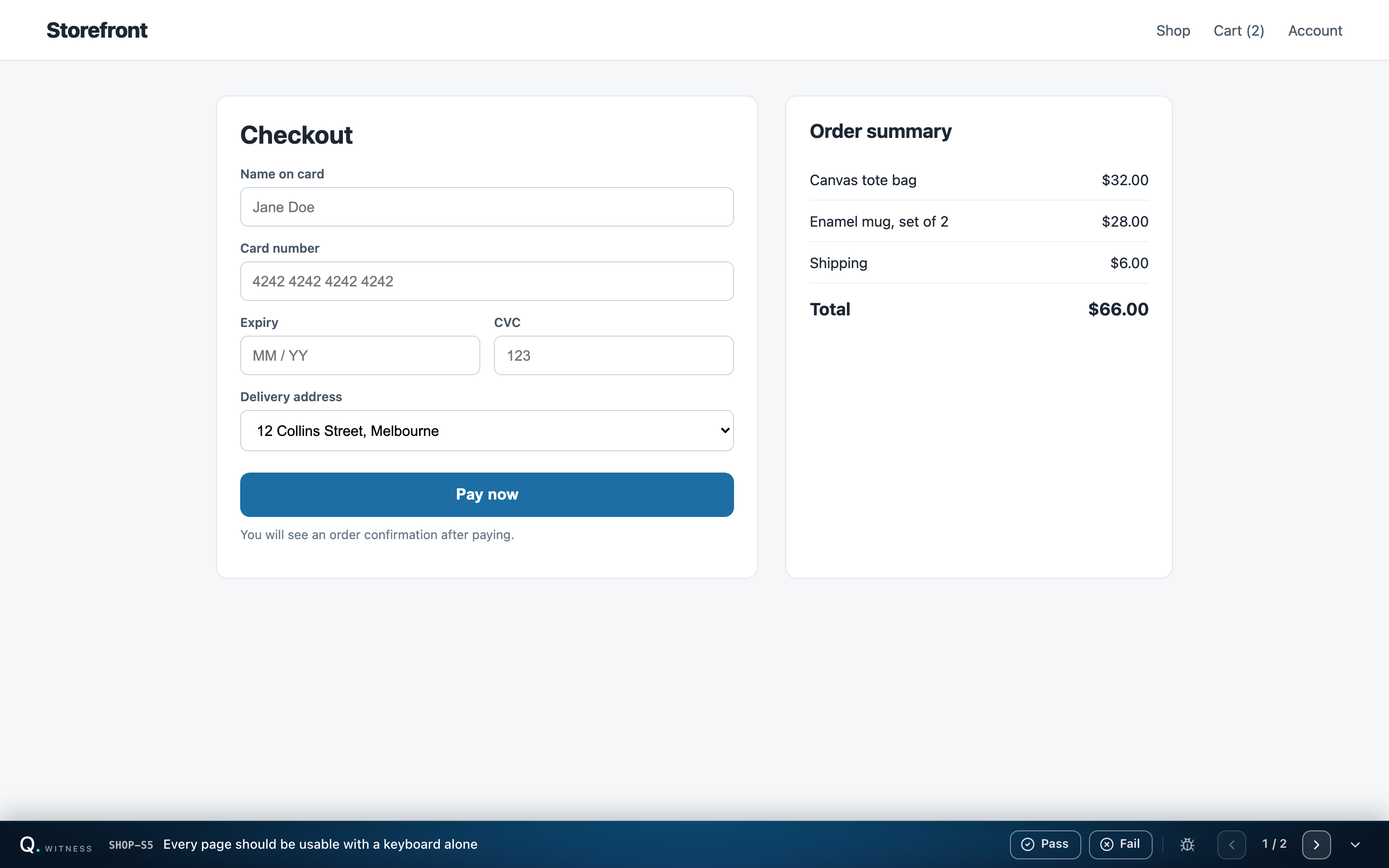
Witness is a dark bar along the bottom edge of the page. When it is closed, one line shows:
| Part | What it is |
|---|---|
| Witness mark | The product mark, with a recording indicator while a scenario is being captured. |
| Scenario | The reference and the statement being tested, such as “SHOP-S3 The cart should always show the correct total”. |
| Pass and Fail | Your verdict on the whole scenario. |
| Bug icon | File a defect against the scenario. |
| Pager | Arrows and a position such as 2 / 2 to move between the run’s scenarios. |
| Chevron | Expand Witness opens the checks. Select it again to collapse. |
Select anywhere on the bar, apart from its buttons, to open or close it.
Test a scenario
Open the bar. Under CHECKS, each check is listed with its reference, its tag such as happy path or edge case, and its statement. A count at the right summarises progress, such as “2 untested” or “1 passed · 1 failed”.

- Read the scenario and its first check.
- Use your app to verify it. Click, type and navigate as a real user would. The bar stays out of the way.
- Mark the check Pass or Fail on its row.
- Repeat for each check.
You do not have to go in order. Witness records the whole scenario, not each check separately.
Record results
- Pass and Fail on a check record that check’s result.
- Pass and Fail on the bar record the scenario’s result. When you mark checks, the scenario’s result follows: all checks passed gives a pass, and one failed gives a fail. You can still set the scenario yourself.
- Select the same button again to clear a result.
- If a result cannot be saved, a message says so and nothing is recorded, so mark it again.
Results are saved as you click, with nothing to submit at the end. They appear in the run’s grid straight away, and a result set in the grid appears in the bar. Results Witness does not offer, such as Blocked, Skipped and Inconclusive, still show on the bar when someone sets them in the grid. See Verdicts and the run grid.
Move between scenarios
Use the pager arrows, Previous scenario and Next scenario. Witness opens on the scenario you were last working on. If you test in two tabs or browsers as the same person, they follow each other, so moving in one moves the other.
File a defect
Select the bug icon on the bar for a scenario, or on a check’s row for that check. The form replaces the checks, and the bar stays in view.
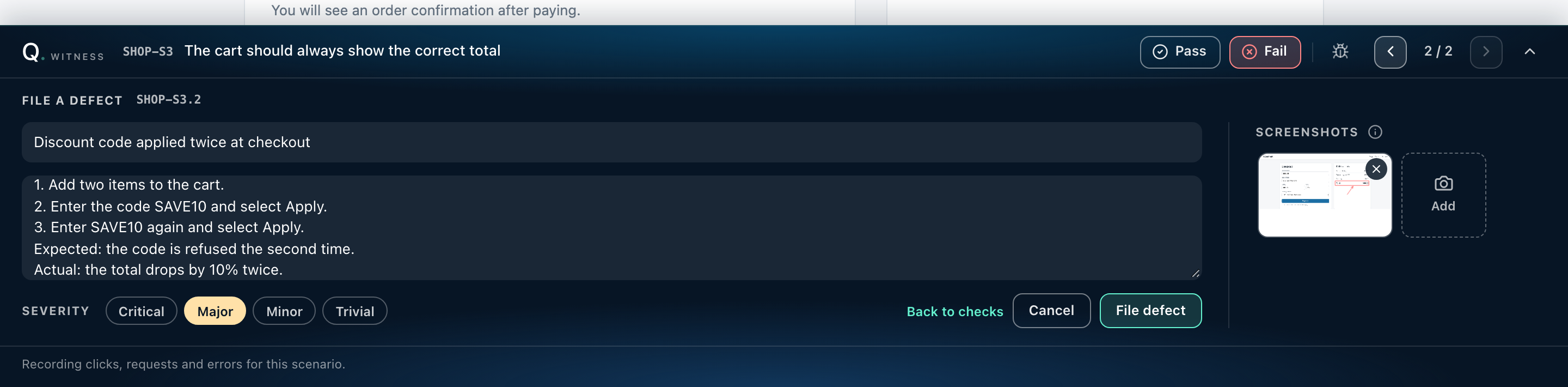
- Enter a short summary of what went wrong.
- In the description, give the steps to reproduce, what was expected and what happened instead.
- Choose a Severity: Critical, Major, Minor or Trivial. It starts at Major.
- Check the Screenshots. Witness takes one of the page as you see it when the form opens, without the bar. Select Add to take another.
- Select File defect.
A message confirms the defect with its reference, such as “Filed SHOP-D3”. If the upload of a screenshot fails, the defect is still saved, and Retry upload sends what is missing. Back to checks or Cancel leaves without filing.
The defect is linked to the scenario or check, the run and the browser you are in, along with a failed or blocked result if you gave one. It is the same defect you would file in Qarmiq. See Defects.
Mark up a screenshot
Select a screenshot to mark it up.
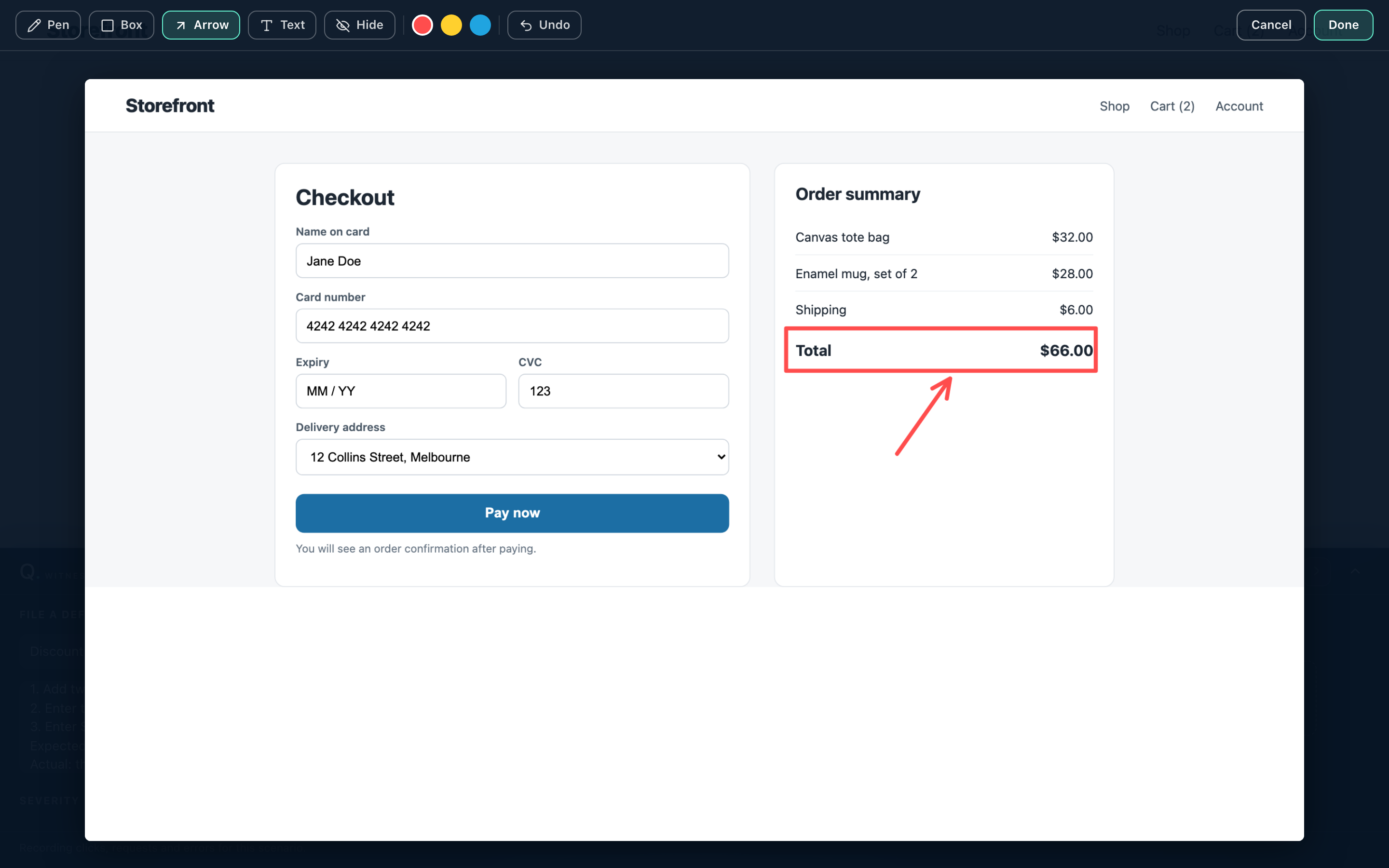
| Tool | Use it to |
|---|---|
| Pen | Draw freehand. |
| Box | Outline the area that is wrong. |
| Arrow | Point at something. |
| Text | Add a short note on the image. |
| Hide | Cover private details. What it covers is removed from the file that is sent, not just hidden. |
Pick a colour, use Undo to remove the last mark, then Done to keep it or Cancel to discard it. To drop a screenshot, use the X on it.
Some things cannot be drawn into a screenshot: another site’s embedded frame, an image from another site that does not allow it, and a panel that is scrolled inside the page. Witness says so when that applies. A page with a strict content security policy may block the screenshot.
What Witness records
While you test a scenario, Witness records:
- Clicks and interactions with fields, described the way an automated test would describe them, by the element’s role and name.
- Network requests and their results.
- Console messages and JavaScript errors.
- Page performance.
Recording starts when a scenario is selected and stops when you change scenario or leave the page. There is nothing to start or stop.
It is not a video. It never records what you type, and it never reads password fields. The bar’s own clicks are not recorded, only your app’s.
It also reads your real browser and operating system and files results under the run’s browser for that family. If they differ from what the run expects, the log warns you.
If something looks wrong
| You see | What to do |
|---|---|
| Loading this run | Wait a moment. |
| Not capturing, with Try again | Recording could not start for this scenario. Select Try again. Your results still save. |
| “The link may have expired” | The link is more than 24 hours old. Select Test manually on the run again. |
| “This test session was ended” | An administrator ended it. Start a new session from the run. |
| “This run has no scenarios to test” | Add scenarios by creating a new run. |
After the session
Open the run. Results are in the grid. To see what a tester did, select Test log beside a scenario. See Manual test log. An administrator can close all open sessions with End sessions under More run actions.
Last verified against the product on 28 October 2026.