Read the Insights page
A tour of the Insights page, top to bottom, with what each number means and what to do about it.
Insights is the first page of every project. It answers one question: how stable is this product right now? It looks at the last 60 days of testing.
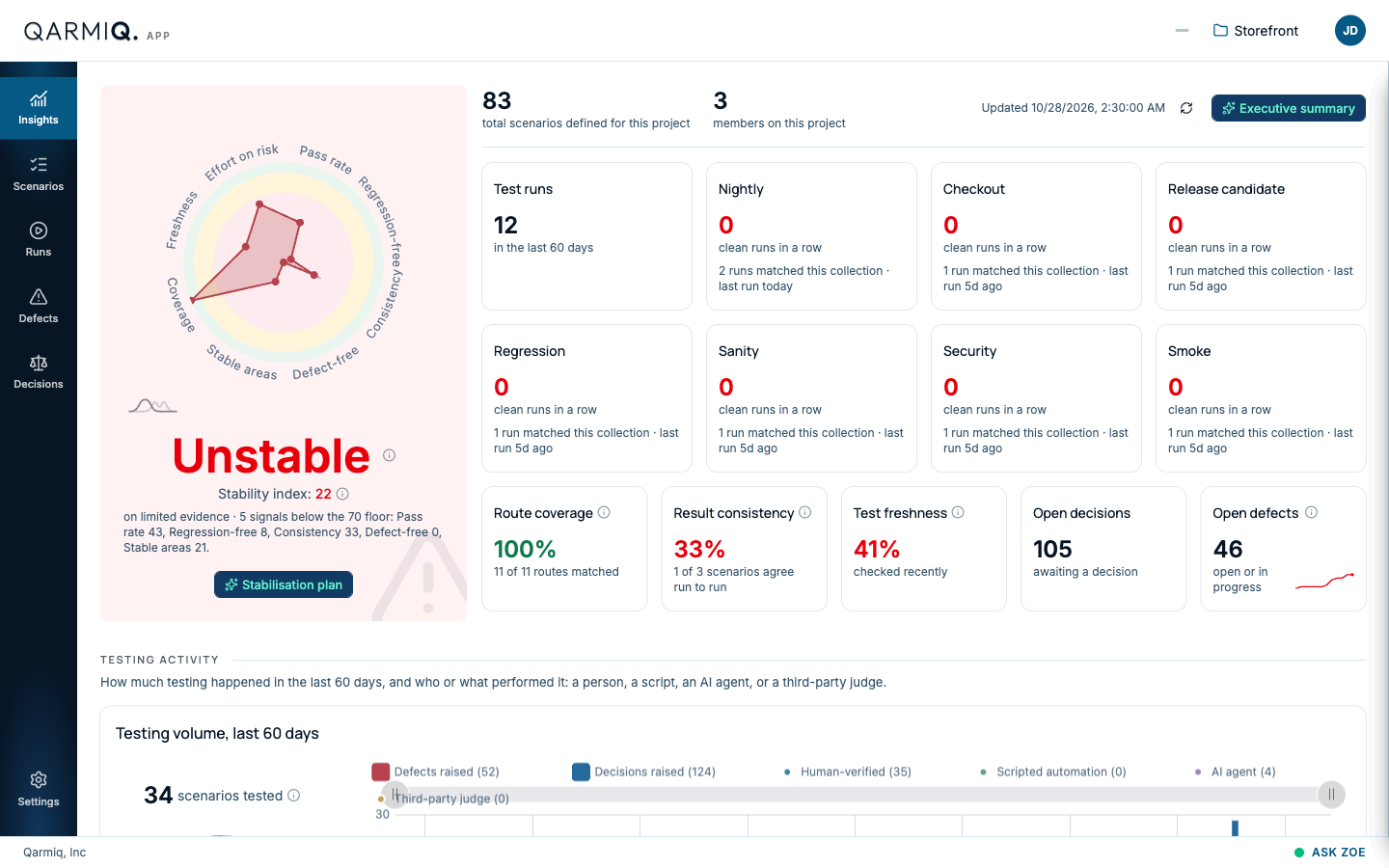
Read it in this order: the verdict on the left, the six numbers beside it, then the charts below that explain why.
1. The verdict
The large word under the radar is the verdict. It is one of:
- Stable: the five stability signals are healthy.
- Watch: something needs attention but nothing is failing outright.
- Unstable: a core signal is failing, or two signals are.
- Not yet assessable: there is not enough recent testing to say. A project with no results in the last 60 days reads this way, and it is never called stable or unstable by default.
Under the verdict, the Stability index is one number from 0 to 100 for tracking the trend. A line of text says why the verdict is what it is, for example “5 signals below the 70 floor: Pass rate 43, Regression-free 8…”. It also says how much evidence the reading rests on: “on limited evidence” or on strong evidence.
Select the ⓘ beside the verdict or the index for a short explanation. The full rules are in How to interpret the radar.
Stabilisation plan opens a ranked list of steps to improve the weakest signals. See Stabilisation plan.
2. The headline numbers
At the top right, the page shows how many scenarios the project has and how many members. Updated says when Insights was last calculated. It does not update live, so select the circular arrow, Refresh insights, to recalculate.
Executive summary opens a short written reading of the whole page, with the drivers named. It is written fresh each time you open it, and it is not saved.
The tiles
| Tile | What it counts |
|---|---|
| Test runs | Runs in the last 60 days. |
| One tile per collection | clean runs in a row for that collection, and how many runs matched it and when the last one ran. A tile at zero means the collection’s latest run was not clean. |
| Route coverage | The share of your app’s mapped pages that have at least one scenario. It matches by the scenario’s entry point text, so a naming mismatch can understate real coverage. |
| Result consistency | Of the scenarios tested more than once in the same browser and environment, how many gave the same result both times. A scenario tested only once is not counted either way. |
| Test freshness | The share of scenarios tested in the last 30 days. A scenario never tested counts against freshness. |
| Open decisions | Everything waiting for a person. See Decisions. |
| Open defects | Defects that are open or in progress, with a small trend line. |
Hover the ⓘ on a tile for its exact definition. If there are no collections yet, the page offers Create one. See Merge and collections.
3. Testing activity
TESTING ACTIVITY shows how much testing happened in the last 60 days, and who or what did it: a person (Human-verified), a script (Scripted automation), the AI browser agent (AI agent), or a connected tool (Third-party judge). The bars also show Defects raised and Decisions raised by day.
- The ring on the left splits the scenarios tested by method. scenarios tested counts each scenario once, however many times or ways it was tested.
- Select a name in the legend to hide or show it. Drag the handles on the slider to zoom into a period.
4. Suite cadence
SUITE CADENCE tracks when each named collection last ran. A suite that has gone quiet is a risk on its own, even if its last run passed. Select a run in the chart to open it.
5. Automation
AUTOMATION shows how much of today’s testing runs automatically against how much still needs a person, and whether that balance is shifting.
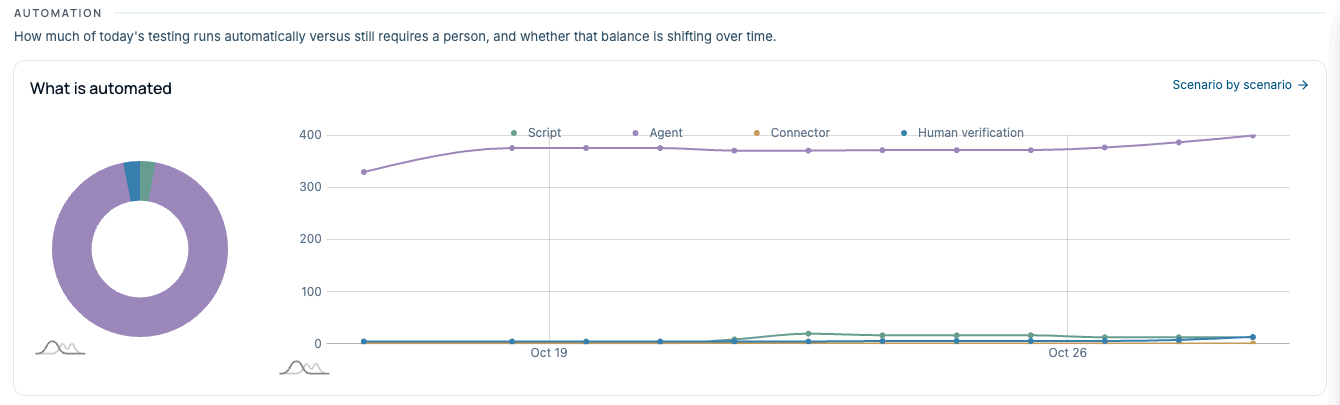
The four lines are Script (runs with no AI call), Agent (tested live by the AI browser agent), Connector (verified by a connected tool) and Human verification (judged by a person). Scenario by scenario opens the detail. See Areas and automation.
6. Effort and risk
EFFORT AND RISK lines up where testing effort goes against where the risk is. The most useful finding is a mismatch: an area that is lightly tested and high-risk. See Areas and automation.
7. Health signals
HEALTH SIGNALS closes the page with three views:
- Areas by health: how your product areas split between Stable, Watch, Flaky and Stale. Full breakdown opens the areas table.
- Decisions: how many decisions Qarmiq raised, the share of its resolved recommendations that were accepted, the median time to act and how many have waited over 7 days. It counts only decisions Qarmiq raised itself.
- Pass rate: how many scenario verdicts there were in 60 days and the share that passed. Blocked, skipped and inconclusive count as not passed, the same as the radar’s Pass rate signal.
Executive summary and Zoe
If you want it explained rather than read, ask Zoe. She reads the same numbers. See Find your way around.
Last verified against the product on 28 October 2026.