Environments
Tell Qarmiq where your product runs, how to sign in to it for each role, and map its pages.
An environment is a copy of your product that you test, such as staging or production. Runs are tied to an environment, and the agent signs in to it to test. Open Settings, then Environments under PROJECT.
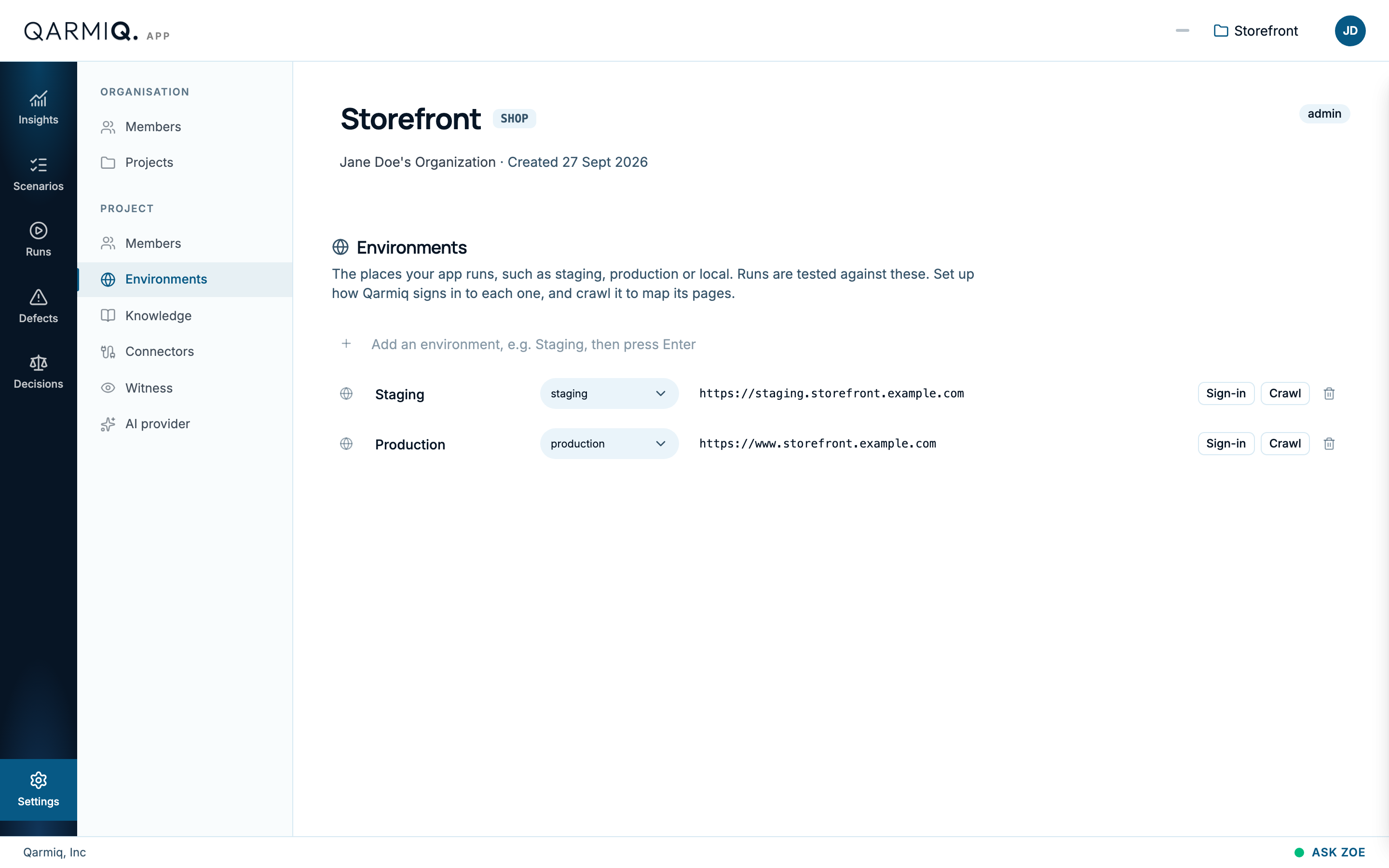
Add or edit environments
Type a name in Add an environment and press Enter. Each row has an editable name, a type such as staging or production, and the address of the site. Use the bin icon to delete one.
Only project administrators can change environments.
Each row also shows the state of its sign-in roles. A role marked Session expired needs reconnecting.
Sign-in
Qarmiq can test pages behind a login. Select Sign-in on a row.
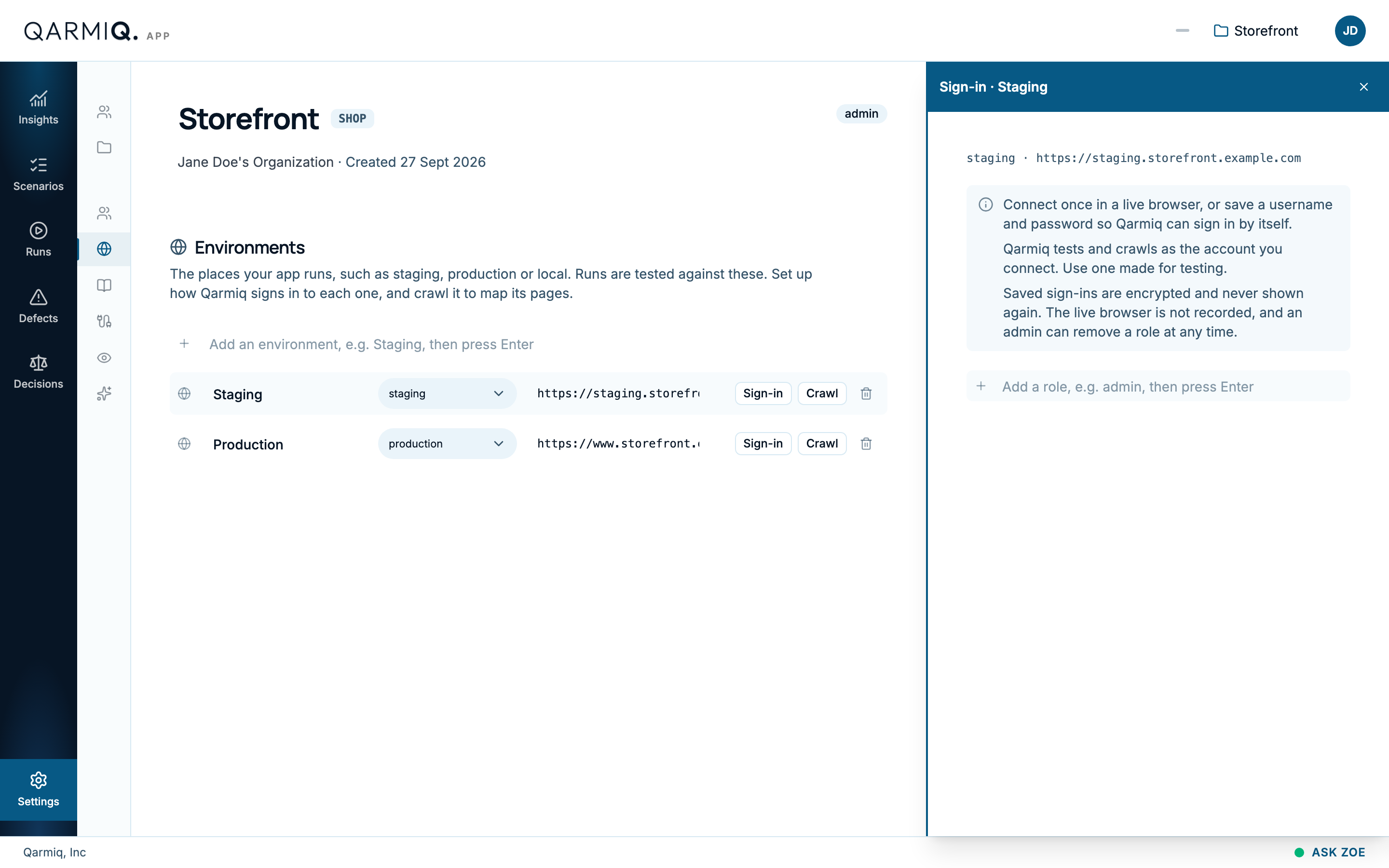
Qarmiq tests and crawls as the account you connect, so use one made for testing. Saved sign-ins are encrypted and never shown again. The live browser is not recorded, and an admin can remove a role at any time.
Add a role
A role is a kind of user, such as admin or member. Type its name in Add a role and press Enter. Add one for each kind of user your scenarios need.
Connect a role
There are two ways, and you can use both:
- Connect (or Reconnect) opens a live browser. Sign in once, yourself. This works when Qarmiq cannot complete the login on its own.
- Add sign-in saves a username and password, and optionally an authenticator setup key, so Qarmiq signs in by itself when a session ends.
What a role’s state means
| State | Meaning |
|---|---|
| Not set up | Tests open the environment signed out. |
| Signed in | A session is saved. With a saved password it signs in again by itself. |
| Signs in automatically | A saved sign-in is used for each test. |
| Connecting | Someone is signing in now. |
| Session expired | Reconnect before autonomous tests can run, unless a password is saved. |
| Sign-in failed | Qarmiq could not sign in. The reason is shown. |
| Paused | Tests skip this role. |
The More menu on a role has Edit sign-in or Add sign-in, Make default, Pause and Resume, and Remove role. The default role is the one tests use when a scenario does not ask for a particular one.
If an environment needs a sign-in before the agent can test it, a Sign-in needed decision is raised. See Decisions. A run page also shows a strip with Set up sign-in. See Verdicts and the run grid.
Crawl
Select Crawl on a row to read each page of the environment and what it holds, such as its headings and forms.
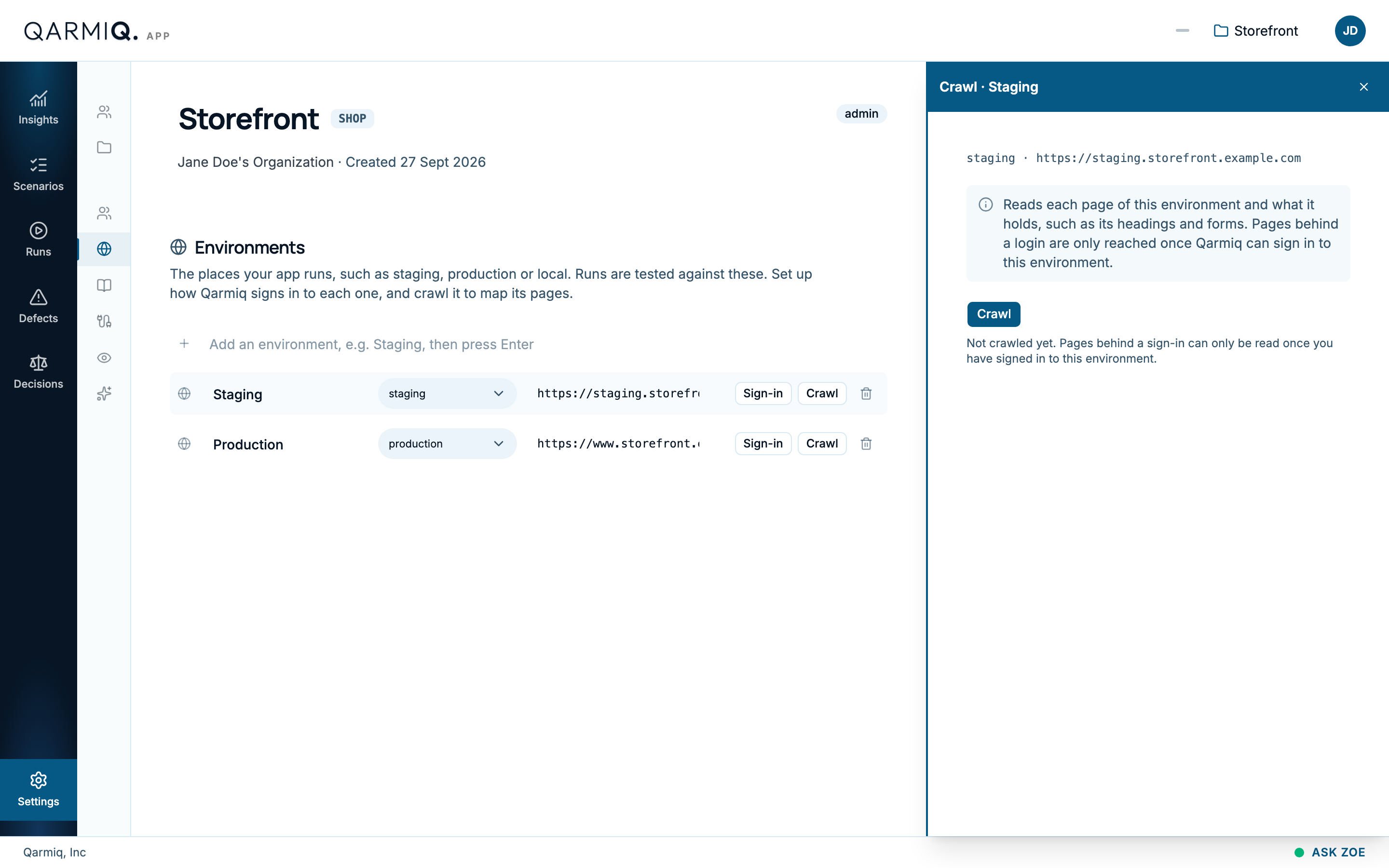
Select Crawl in the panel to start. When it finishes, the panel says how many pages were found and lists them, each with its number of forms and headings. Pages behind a login are reached only once a role is connected.
The crawl feeds the route coverage on Insights and the questions on Knowledge. If a form field disappears or changes between crawls, a Route change decision is raised.
Last verified against the product on 28 October 2026.